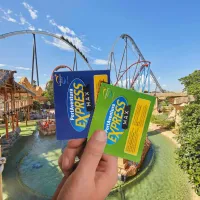




My PhotoCloud is the digital photo service for the attractions at PortAventura Park. It lets you collect the photos from your visit and download them to your phone, instead of buying each photo separately.
If you’re searching for “PortAventura PhotoPass,” this is the name you should look for. To use the service, you must sign up and request the photos after riding the attractions—it’s not enough to just purchase it and wait for all the photos to appear automatically.
What’s Included in My PhotoCloud
It includes digital photos from participating attractions during the product’s validity period. The official description states that you must request them at their Photoride stations.
It’s a digital photo service, not a package of printed souvenirs. User guides posted by visitors also distinguish videos and printed copies as separate products.
Which Attractions Are Included
The list published by the specialized guide Port Aventura TIPs includes these attractions, subject to availability:
- Furius Baco.
- Shambhala.
- Dragon Khan.
- Hurakan Condor.
- Silver River Flume.
- Stampida.
- Tutuki Splash.
- El Diablo – Mine Train.
- Grand Canyon Rapids.
- Tomahawk.
- Elmo's Farm.
- Tami Tami.
- Uncharted.
This list is based on practical information from visitors, not on a detailed list published in the official guide. Be sure to confirm the selection when purchasing, especially if a specific attraction is the main reason for your purchase.
What You Shouldn’t Confuse with This Service
The coverage advertised applies to PortAventura Park. Do not purchase My PhotoCloud assuming it automatically includes photos from Ferrari Land, character encounters, or any other photos from the resort.
The photo packages that combine a limited number of images with printed copies are also different. If you want printed photos, compare that product with the digital download service.
How it works: from registration to download
The procedure described in user reviews is as follows:
- Register for the service using the QR code. Enter an email address you’ll have access to during your visit.
- Activate your access. Use the credentials you receive and keep the product code.
- Find your photo on your way out. Check Photoride to see which one corresponds to your route.
- Request that it be added. Present the service ID to link the image.
- Access the photos. Follow the instructions provided to view and download the files.
Don’t wait until you leave the park. Managing each photo as soon as you finish the ride makes it easier to identify it and resolve any issues right then and there.
Do the photos automatically get sent to my phone?
Don’t count on it. The important step is to request the photo at the Photoride and verify that it’s added to the service. Keep the ID until you’ve downloaded your photos.
Is this for one person or the whole family?
It’s not a license to collect any photo of all your companions. According to the process described by visitors, the account holder must appear in the photos they request.
This allows us to distinguish between two situations:
- You’re in the photo with your family: this is an image in which the account holder appears.
- Your friends take photos without you: you shouldn’t assume that their photos can be included in your product.
For groups, there are booking options with additional account holders or credentials. Before paying, specify how many people are in your group and whether you’ll be taking photos together or separately—that distinction matters more than sharing the downloaded files afterward.
Validity: One-day visit or hotel stay
The option advertised on the park’s website is per person per day. If you’re visiting for just one day, make sure the product corresponds to that date.
Guest experiences also describe an option to cover your stay at resort hotels. If this applies to you, specifically request it at the front desk or at the photo booth and verify the end date before paying.
A one-day purchase does not automatically become a purchase covering your entire stay just because you’re staying at a hotel. Nor does it mean the service is included with your room.
How to Download and Save the Photos
Once you have access to the images, download the files and save a copy on your phone, computer, or usual storage device.
Be aware of two time frames: the period during which you can add photos and the time during which you’ll be able to access them afterward. Don’t assume that a gallery will remain available indefinitely.
Before leaving, check that you can access the service and ask about the download period specified for your product. If any images are missing, provide the attraction name, approximate time, and the photo reference number if you have it.
Is PortAventura’s PhotoPass worth it?
It may be worth it if you want to save photos from several participating attractions. It’s less useful if you’re only interested in one photo or if most of your visit doesn’t include photos.
| Your Visit | What to Consider |
|---|---|
| You want souvenirs from several attractions. | The digital service versus several individual purchases. |
| You only want one specific photo. | A single purchase of that image. |
| You prefer printed photos. | A product with physical prints, not just a download. |
| Your group splits up to go up. | Coverage for each reporter and the cost of the necessary press credentials. |
| You’re staying for several nights. | The type of stay versus daily packages. |
To figure out if this is right for you, compare equivalent products: a digital photo isn’t the same as a framed print. Count only the images you’d actually want to buy.
Tips for Getting the Most Out of My PhotoCloud
- Enable access at the beginning and make sure you’re receiving messages correctly.
- Keep the QR code or service ID with you throughout your visit.
- Review and request your photo after each attraction.
- Don’t wait until closing time to resolve any missing images.
- Download the files and save a copy as soon as they’re available.
- While on the rides, follow safety instructions: do not take out your phone to try to get another photo.
Frequently Asked Questions About PortAventura Photos
Are PhotoPass and My PhotoCloud the same thing?
“PhotoPass” is a common term for a photo pass. The digital service currently offered by PortAventura is called My PhotoCloud.
Does it include printed photos and videos?
The service described here is for digital photos. It should not be confused with printed products or videos from the rides.
Can I collect photos uploaded by friends without me being in them?
Don’t assume this is allowed: the terms of use specify that the passholder must be present in the photo. If you plan to split up, check the required credentials before purchasing.
Do I have to go to the photo counter?
You must request the images at the Photoride station located at the included attractions. The necessary steps to add them to the service are handled there.
Is it valid for the entire duration of my hotel stay?
Only if you purchase a plan that covers your entire stay. Check the expiration date: simply being a guest isn’t enough.
Can I wait until I get home to download them?
Follow the deadline provided with your product. Before leaving the park, make sure you’ve requested the photos and know how to access them.
If you’re planning your visit, check out PortAventura tickets on Satoorday and organize your add-ons based on the attractions you want to experience.